Understand AI timelines, manual tagging, and how to promote sessions.
Annotating a Match
Learn how to review a match in the Annotate tab, add events quickly, refine details, and save a reliable timeline.
Annotating a Match
The Annotate tab is where coaches and analysts turn raw video into structured match data. A strong annotation session gives you a searchable timeline, cleaner highlight reels, better downstream reports, and a shared reference point for the rest of the staff.
This guide covers the full manual workflow: how to move through the video, when to add each event type, what every event means, and which keyboard shortcut adds it fastest.
Before You Start
- Link the video to the correct match whenever possible so the resulting session inherits the right opponent, date, and reporting context.
- Open the video or match, then switch to the Annotate tab.
- If a session already exists, open the one you want to review. If not, start a blank manual session and build the timeline from scratch.
- If the media is not linked yet, the editor can create the match record when you save, but it is cleaner to link the video first.
Annotate Workflow
1. Navigate to the Moment
Use playback controls to get to the exact action you want to log.
- Press
Spaceto play or pause. - Press
Left ArroworRight Arrowto step backward or forward. - Press
Up ArroworDown Arrowto jump 10 seconds at a time. - Click directly on an existing event in the timeline or event list to jump back to that moment.
The goal is not frame-perfect tagging on the first click. Add the event quickly, then refine the timestamp or event details from the event card if needed.
2. Add the Event
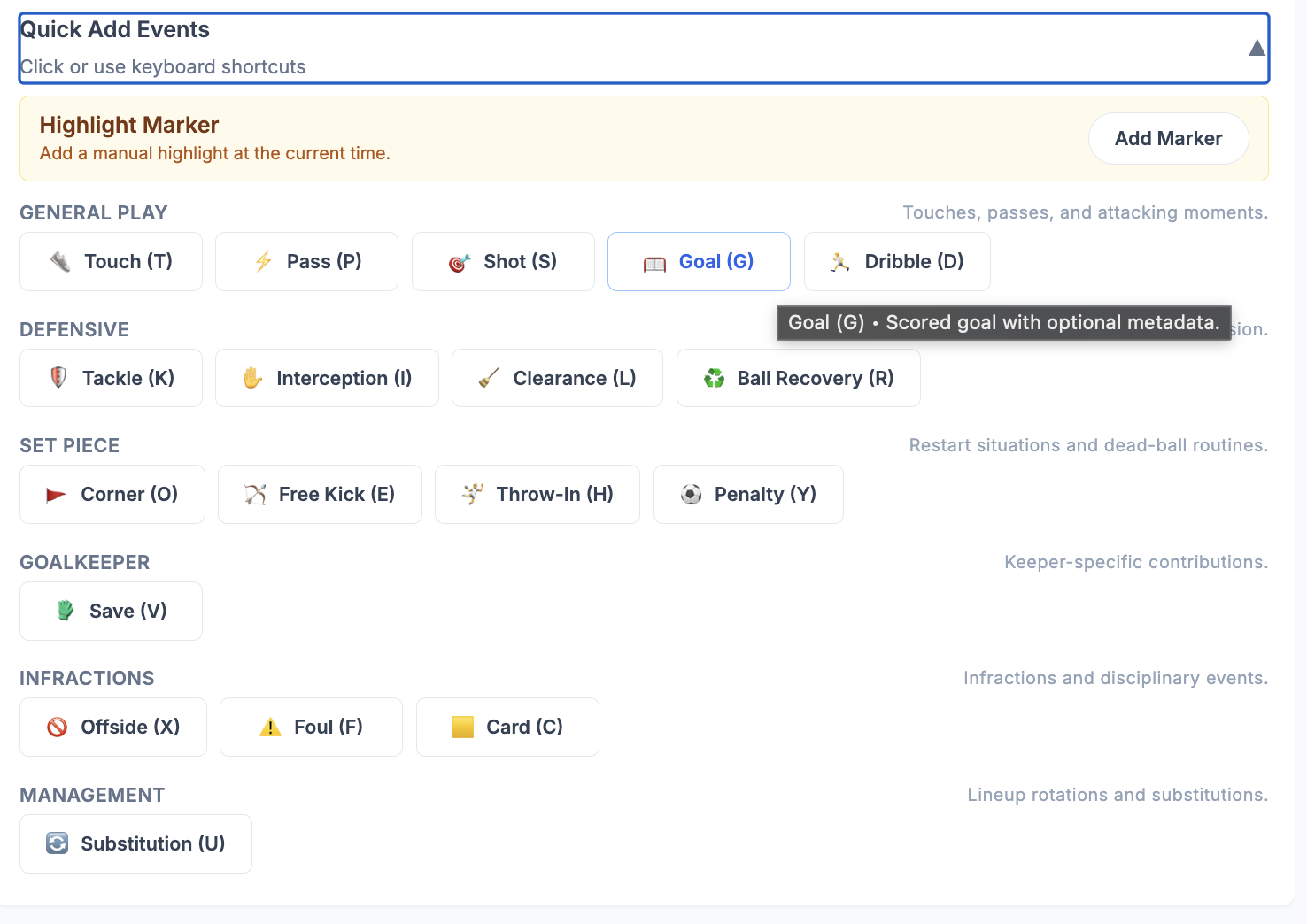
Use the Quick Add Events palette or the keyboard shortcut for the event you want. Shortcuts only fire while you are not typing in a text field, so they are safe to use during review.
- The event is added at the current playback time.
- The player pauses when you add an event from the shortcut palette, which helps you review the moment before moving on.
- New events appear immediately in the timeline and the event list.
The quick-add panel is grouped by category so you can scan it quickly:
- General Play for touches, passes, shots, goals, and dribbles
- Defensive for tackles, interceptions, clearances, and recoveries
- Set Piece for corners, free kicks, throw-ins, and penalties
- Goalkeeper, Infractions, and Management for specialized match moments
If you prefer reviewing in full screen, the same event set is available as an icon bar overlay on top of the video.

3. Refine the Event Details
After adding an event, select it from the timeline or event list to review the edit card.

Depending on the event type, you can update:
- the player
- the jersey number
- the team side (
Home,Away, orUnknown) - the exact timestamp in seconds
- the success result for supported events
- substitution details for players going out and coming in
- tags for tactical context
Use this second pass to clean up ambiguous moments. Fast first pass, accurate second pass is usually the most efficient workflow.
4. Add Tags Where Context Matters
Events describe what happened. Tags explain the tactical context around it.
Examples:
- add a
Build-uptag to a pass that starts a possession pattern - add
Transition Defenseto a ball recovery or tackle - add
Final Thirdto a shot, dribble, or key attacking action
If your staff uses shared tactical vocabulary, tagging during annotation makes highlights and reports much more useful later.
Save and Review
- Use the bottom save bar whenever you have unsaved changes.
- Add optional session notes before saving if you want to describe what changed in this pass.
- Press
Ctrl+Sto save quickly from the keyboard. - If you want a reminder of common shortcuts, open the keyboard help overlay with
?.
Before you finish the session, skim the event list once to catch duplicated actions, incorrect team side assignments, or missed substitutions.
Event Reference
The list below follows the same categories used in the annotation palette.
General Play
| Event | Shortcut | What it means | Use it when | Notes |
|---|---|---|---|---|
| Touch | T | A basic ball contact that marks possession or involvement. | Use when a player clearly controls or contacts the ball, but the action does not need a more specific label yet. | Best as a lightweight possession marker. Do not overuse it if the same moment is already better described as a pass, dribble, shot, or goal. |
| Pass | P | A successful or attempted distribution of the ball. | Use for intentional movement of the ball toward a teammate or a target area. | This event supports a success result. Mark the result carefully so later reporting can distinguish completed and incomplete passes. |
| Shot | S | A shot attempt from any distance. | Use for any intentional scoring attempt, whether it is blocked, saved, on target, or off target. | This event supports a success result. If the shot scores, log the goal as well so the final outcome is explicit. |
| Goal | G | A scoring event where the ball crosses the line legally. | Use once the play results in a confirmed goal. | Use Goal for the finish itself, not just the chance. If you also log the preceding shot, keep both timestamps aligned to the same attacking sequence. |
| Dribble | D | A carry, take-on, or 1v1 action while moving with the ball. | Use when a player advances possession through control and movement rather than primarily through a pass. | This event supports a success result. Mark it unsuccessful if the player attempts the take-on but loses the duel or possession. |
Defensive
| Event | Shortcut | What it means | Use it when | Notes |
|---|---|---|---|---|
| Tackle | K | A direct challenge to dispossess the opponent. | Use when a defender actively engages the ball carrier and contests possession. | This event supports a success result. Use Ball Recovery instead if possession is regained from a loose ball without a clear tackle action. |
| Interception | I | Reading the play and cutting out a pass or lane. | Use when a player steps into the path of the ball and disrupts the opponent's intended pass. | This event supports a success result. It is usually cleaner than Tackle when the defender wins the ball before it reaches the target. |
| Clearance | L | Clearing the ball away from danger. | Use when the team deliberately removes immediate pressure, especially near its own goal. | This event supports a success result. Use it for emergency defending or purposeful safety-first actions, not every long pass out of the back. |
| Ball Recovery | R | Regaining possession after a loose, second, or broken ball. | Use when your team ends up with the ball after a scramble, deflection, rebound, or uncontrolled turnover. | Use this instead of Interception or Tackle when there is no single clean defensive action that caused the regain. |
Set Piece
| Event | Shortcut | What it means | Use it when | Notes |
|---|---|---|---|---|
| Corner | O | A corner kick restart. | Use when play restarts from the corner arc after the opponent last touched the ball. | Tag follow-up context separately if needed, such as Set Piece Offense, Near Post, or Second Ball. |
| Free Kick | E | A direct or indirect free-kick restart. | Use for dead-ball situations awarded after a foul, offside, or other stoppage. | This covers both attacking and defensive free kicks. Add tags if your staff wants to separate attacking restarts from defensive resets. |
| Throw-In | H | A throw-in restart from the touchline. | Use whenever play restarts with a throw after the ball leaves the field. | This is useful when your staff tracks patterns off throw-ins, pressing triggers, or restart organization. |
| Penalty | Y | A penalty kick and its result. | Use for a penalty attempt once it is taken. | Keep this separate from a normal shot because the context and reporting value are different. |
Goalkeeper
| Event | Shortcut | What it means | Use it when | Notes |
|---|---|---|---|---|
| Save | V | A goalkeeper save or block that prevents a goal. | Use when the keeper stops a shot or a dangerous attempt headed toward goal. | Use this for the keeper's intervention, not for every routine collection. If the sequence begins with a shot, it is normal to log both Shot and Save. |
Infractions
| Event | Shortcut | What it means | Use it when | Notes |
|---|---|---|---|---|
| Offside | X | An offside infraction that stops the attack. | Use when play is halted for an offside offense. | This is mainly a restart and discipline-of-play marker, not a passing or shooting event. |
| Foul | F | A foul committed or won. | Use when the referee awards a foul or the sequence clearly contains one you want to track. | Record the team side carefully so later review can distinguish fouls committed from fouls drawn. |
| Card | C | A yellow or red disciplinary card. | Use when a player is cautioned or sent off. | Add it at the point the sanction is shown, even if it follows an earlier foul event in the same sequence. |
Management
| Event | Shortcut | What it means | Use it when | Notes |
|---|---|---|---|---|
| Substitution | U | A player change involving one player coming off and another entering. | Use when the lineup changes during the match. | After adding the event, fill in both the outgoing and incoming player when possible so the match timeline stays useful later. |
Events With Success Tracking
Some event types let you explicitly mark whether the action succeeded. Use that field consistently because it affects how the event is interpreted later.
PassShotDribbleTackleInterceptionClearance
If your staff plans to compare players or matches quantitatively, success tracking matters as much as the event label itself.
Common Judgment Calls
Touch vs Pass
- Use
Touchwhen you only need to mark involvement or possession. - Use
Passwhen the player intentionally moves the ball to a teammate or target space.
Tackle vs Ball Recovery
- Use
Tacklewhen the regain comes from a direct challenge on the opponent. - Use
Ball Recoverywhen the ball becomes loose and your team gathers it.
Interception vs Ball Recovery
- Use
Interceptionwhen the defender reads the pass and cuts it out. - Use
Ball Recoverywhen the ball is won after the pass breaks down without a clear interception action.
Shot vs Goal
- Use
Shotfor the attempt. - Use
Goalfor the confirmed scoring outcome. - In many sequences it is appropriate to record both.
Clearance vs Long Pass
- Use
Clearancewhen the main purpose is safety and relieving danger. - Use
Passwhen the action is clearly a controlled distribution choice.
Highlight Markers
In addition to structured events, the editor also supports manual Highlight Markers. Use a marker when you want to flag a moment for later review or reel building but the moment does not fit one of the standard event types.
Markers are useful for:
- coaching moments
- celebrations or reactions
- bench moments
- crowd moments
- custom review notes
Use markers sparingly. They are best for moments that are editorially important but not easy to describe as a standard match event.
Review Habits That Keep Data Clean
- Be consistent with team side from the start of the session.
- Prefer the most specific event available instead of stacking generic labels.
- Use tags for tactical context rather than inventing new event meanings.
- Add substitutions as they happen so player-based reporting remains trustworthy.
- Do a quick review pass before saving to catch duplicate clicks or mistimed events.
Related Articles
- Using Tags in Analytics Sessions
- What is an Analytics Session?
- Tagging Workflows
- Linking Videos to Matches
- AI vs Manual Annotation
Still need help? Contact us at support@soccer-insights.com.